


Email: Fast, Manage All Mails
4.6929.00 Reviews
App Specs
- Version
- 1.5.2
- Updated On
- License
- Free
- Downloads
- 10,000,000+
- Developer
- BizApp Innovators
- Categories
- Productivity
- Platform
- Android
Screenshots
 Analysis by AppCompare
Email: Fast, Manage All Mails is the kind of productivity app I would try when my inboxes have become scattered across several services. Its main appeal is simple: it brings email access into one place and adds AI-assisted writing to the process. After spending time with it, I see a useful everyday tool for people who want less switching between mail apps, although it is not automatically the best replacement for a full-featured email client.
The app is free, aimed at Everyone, and works on Android devices running version 6.0 or later. BizApp Innovators released it on December 15, 2023, and the current version is 1.5.2. That makes it a relatively young product rather than a decades-old mail platform with years of accumulated settings and integrations. I think that matters when deciding what to expect: its appeal is convenience and speed, while users who depend on highly specialized inbox controls may still prefer a mature alternative.
How Email: Fast, Manage All Mails feels today
I look at the app today through a practical question: does bringing scattered inboxes together make it easier to decide what deserves attention? Its value is less about changing how email works and more about reducing the little interruptions between checking accounts and beginning a reply. That makes a consistent routine especially important, because a shared inbox is only useful when it helps me act with less friction.
One place for a fragmented inbox
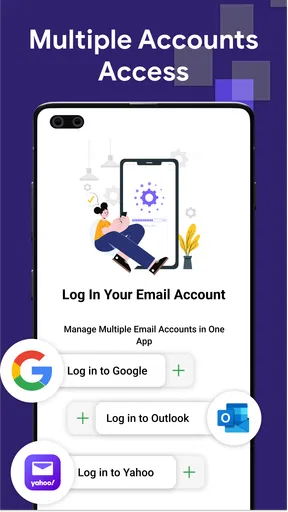
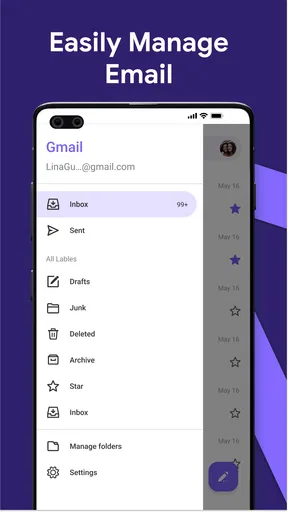
The strongest idea here is consolidation. Instead of opening separate applications to check different accounts, I can use one productivity-focused space to keep email within the same routine. That is especially helpful for people who maintain a personal address, a work address, and perhaps a school or project account. The benefit is not just saving taps. It also reduces the mental cost of remembering which inbox might contain a message.
I would describe the experience as practical rather than elaborate. The app is built around getting to messages quickly and composing replies without making email feel like a large administrative task. That focus makes sense for users who mostly read, answer, archive, and move on. It is less compelling for someone who treats an inbox as a detailed project-management system with complex labels, rules, and long-term filing habits.
A realistic example is a busy morning when a delivery update arrives in a personal account, a colleague asks a question in a work account, and a school notice appears elsewhere. With a unified view, I can scan the situation before deciding what deserves an immediate answer. I would still separate urgent messages from merely new ones, but I would not need to keep jumping between apps just to discover what arrived.
AI writing is most useful as a starting point
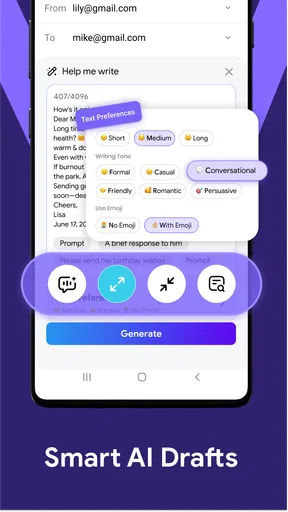
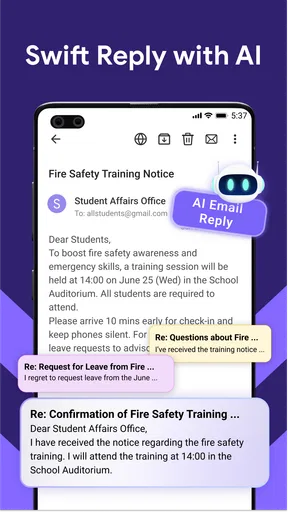
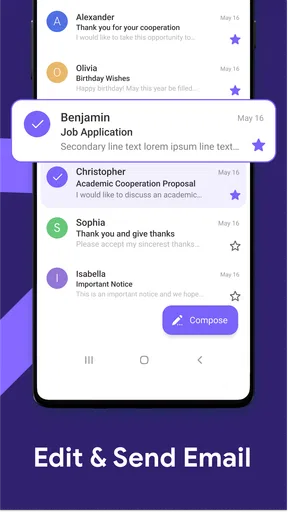
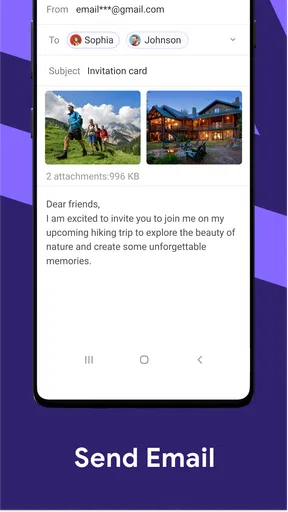
The AI-assisted writing feature is the other major reason to consider this app. In my experience, writing assistance is most valuable when I already know what I want to say but do not want to spend several minutes turning rough thoughts into a polite email. It can help me move from a short instruction or a few notes toward a more complete draft.
Worth Reading Before You Choose

EA SPORTS FC Mobile 26 Is a Bigger Football Game, but It Takes Time

Flipboard Shows What News Apps Must Do Beyond the Feed

Switching to Android Auto Means Rethinking Your Driving Routine

Google Calendar Makes a Crowded Week Easier to Manage

Ludo King Makes the Most of the Minutes Between Plans

Baby Panda World Brings Quick Play to Modern Phones, but Its Game Library Feels Busy
I would not treat an AI draft as something to send without reading. Email has context, tone, names, dates, and commitments that a writing assistant may not understand perfectly. My preferred workflow is to use the tool for the first version, then check every factual detail, remove unnecessary politeness, and make sure the message sounds like me. The time-saving step is editing a draft, not surrendering judgment.
This is particularly useful for repetitive but slightly different messages: confirming an appointment, asking for an update, explaining a delay, or replying to a request when I am tired. It is less useful for sensitive conversations, negotiations, complaints, or messages where a personal voice matters more than polished wording. In those situations, I would rather write directly and use the app mainly for access to my mail.
What the current release suggests
Version 1.5.2 shows that the product has moved beyond its initial launch and is being maintained as an active app. I see that as a positive sign for someone considering adoption now, because a current version is preferable to an abandoned experiment. At the same time, a version number alone does not tell me that every advanced email workflow is covered, so I would judge it by the tasks I actually perform each day.
The release history is also relevant to existing users. People who started with an earlier build should keep the app updated so they benefit from the current state of the product. New users, meanwhile, should think of the present version as a snapshot of a developing service rather than a guarantee that every future improvement will match their priorities. I like the direction, but I would avoid building an entire business process around any young email tool before testing it with ordinary, non-critical messages.
How it changes the routine for existing users
For someone already using several mail apps, the adjustment is mainly behavioral. The first improvement is having one place to check, but the real gain comes from making that location part of a consistent routine. I would check the combined inbox at planned moments, then process messages using a simple sequence: answer what takes little effort, flag or leave aside anything requiring research, and archive messages that no longer need attention.
That approach prevents a unified inbox from becoming a larger pile of unread messages. Consolidation is helpful only when it improves decisions. If every account is displayed together without a personal method for separating work, family, receipts, and newsletters, the result can feel busier than the original setup. My advice is to decide which accounts should be checked together and which should remain mentally distinct before relying on the app as the main inbox.
There is also a privacy and accuracy habit worth adopting with AI-assisted writing. I would avoid pasting unnecessary confidential details into a draft prompt, and I would inspect the suggested wording before sending it to a real person. Even when the sentence sounds professional, it may be too formal, too vague, or more confident than I intended. The app can speed up composition, but the sender remains responsible for the final message.
Where it compares well with ordinary alternatives
Compared with using a separate official app for every email account, Email: Fast, Manage All Mails is more convenient for people who value a single starting point. I do not have to remember which icon belongs to which address, and the AI writing option gives it a capability that a basic inbox viewer may not emphasize. For light personal use, that combination can feel more efficient than maintaining several parallel routines.
Compared with a traditional, highly configurable email client, the trade-off is different. Established clients often suit users who need detailed sorting, advanced search habits, calendar connections, custom signatures, or carefully tuned notification behavior. This app makes a stronger case when the priority is fast access and assisted composition rather than building an elaborate command center for every message.
It also differs from writing an email in a general AI assistant and then copying the result into a mail app. Keeping the writing help close to the inbox removes a step and makes the feature easier to use during normal correspondence. However, a general writing tool may be better for long-form editing, brainstorming, or documents that are not email at all. I see Email: Fast, Manage All Mails as a focused convenience layer, not a replacement for every writing application.
Three practical workflows I would use
My first workflow is a quick triage pass. I would open the combined inbox, identify messages that can be answered in a few sentences, and use the writing assistant only when the response needs a cleaner structure. I would then return to the messages that require a decision. This keeps AI from becoming a distraction for simple replies and makes the app’s speed more noticeable.
The second is a tone-check workflow. I would write my own rough answer first, ask for assistance when the wording feels abrupt or disorganized, and then compare the result with my original intention. This is more reliable than asking for a complete response from nothing because I remain in control of the facts and the relationship with the recipient.
The third is an account-separation workflow for people with mixed responsibilities. I would use the combined view for discovery, but process each account according to its role. Work messages might be answered during working hours, while personal mail could wait. That distinction is easy to lose when everything appears in one place, so the app works best when the user supplies a clear routine instead of expecting the interface to solve prioritization automatically.
Limitations that should influence your decision
The first limitation is that a unified inbox can create noise. Bringing accounts together does not automatically create a better priority system. Users with many newsletters, automated notices, and low-value alerts may still need careful inbox habits. If you already struggle to distinguish urgent messages from background mail, the single-screen approach could initially feel overwhelming.
The second is the natural limitation of AI writing: it can make a message sound finished before the message is actually correct. I would be especially careful with names, commitments, deadlines, refunds, technical explanations, and emotionally sensitive replies. A polished error is more dangerous than an obviously unfinished sentence because it invites a quick send.
The third is that people with demanding email administration may outgrow the streamlined approach. If your work depends on intricate folders, elaborate rules, specialized search operators, or deep integration with other services, compare those needs carefully before moving everything over. The app is easier to recommend for everyday correspondence than for a complex support desk or a heavily documented business workflow.
Notifications deserve the same practical caution. When several accounts are combined, alerts can become more frequent and harder to interpret. I would start with conservative notification settings, then adjust them after seeing which messages genuinely need immediate attention. That small change can make the difference between feeling informed and feeling interrupted all day.
Who should try it, and who should skip it
I would recommend this app to students, freelancers, families managing multiple addresses, and professionals who mainly need to read and answer messages quickly. It is also a sensible option for anyone who likes the idea of AI help but wants that assistance in the same place where email is handled. The free price removes a major barrier to trying it, which is useful when you want to test whether a unified inbox actually fits your habits.
I would be more cautious if you manage confidential correspondence, operate a large team inbox, or depend on a very specific filing system. In those cases, I would first test one less-important account and observe how the app fits your sorting, notification, and reply workflow. Users who dislike AI-generated wording altogether may also find the headline feature unnecessary, although the centralized email access can still be the reason to try it.
The Everyone content rating makes it approachable for a broad audience, but that does not mean every user will find it equally suitable. Accessibility, account organization, and comfort with assisted writing are personal matters. I would choose it for convenience, not because a general age rating promises that it will match every professional requirement.
What I would watch as the product evolves
Because BizApp Innovators is developing a relatively young email product, I would watch how future releases handle the balance between simplicity and control. The most meaningful progress would be improvements that help users manage a combined inbox without turning it into a complicated dashboard. Better ways to distinguish accounts, priorities, and message types would strengthen the central idea.
I would also pay attention to how the AI writing experience develops. The useful direction is not merely producing longer emails. It is helping users preserve their own tone, understand what the draft is assuming, and edit quickly when the context is unusual. If future updates make that review process clearer, the feature could become more trustworthy for everyday work.
Existing users should watch updates for changes that affect their routine, especially after installing a new version. I would keep a backup method for accessing important accounts while evaluating any evolving mail app, not because this one is unusable, but because email is too important to leave without a practical fallback. That is sensible planning for any developing productivity tool.
My final take after using it
Email: Fast, Manage All Mails succeeds when I use it as a fast central inbox with optional help for drafting. Its best quality is the way it reduces the friction between noticing a message and starting a sensible reply. The current version, broad device compatibility, and free price make it easy to test, while its strong user response—an average rating of 4.6 from around 87 thousand ratings—suggests that the straightforward concept resonates with many people.
Its scale is also notable, with over 10 million installs, but popularity does not remove the need to check whether its workflow suits you. I would not choose it solely because many people have downloaded it. I would choose it if I wanted fewer inbox apps, quicker access to several accounts, and a writing assistant that stays close to email.
My recommendation is to start with one secondary account, establish a clear triage routine, and treat every AI draft as editable material. If that experiment makes your day calmer, the app could become a useful part of your productivity setup. If you need deep email administration, strict separation between accounts, or complete control over every message rule, a more established client may serve you better. Email: Fast, Manage All Mails is most convincing as a practical shortcut, not as a universal answer to email management.
Pros
- Unified inbox keeps messages from multiple accounts in one place.
- Fast search helps locate emails
- attachments
- and conversations quickly.
- Custom swipe actions make routine email management more efficient.
- Supports useful notifications for incoming messages and account activity.
- Clean layout is easy to navigate on both phones and tablets.
Cons
- Some advanced features may require a subscription or in-app purchase.
- Notification delivery can vary depending on device and account settings.
- The interface may feel crowded when managing many accounts at once.
- Privacy details may require careful review before connecting email accounts.
- Large attachments and extensive inboxes can affect loading performance.
FAQs for Email: Fast, Manage All Mails
What is Email: Fast, Manage All Mails?
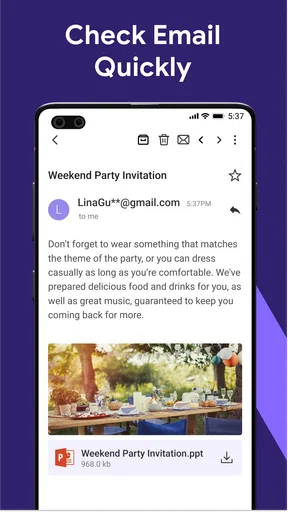
Email: Fast, Manage All Mails is a mobile email client designed to bring messages from multiple accounts into one convenient inbox. After setting it up, you can read, reply to, organize, search, and manage email without switching between separate provider applications. It is intended for users who want a simpler way to handle personal, work, or school accounts from one interface.
Which email accounts can I use with Email: Fast, Manage All Mails?
The app is generally designed to support common email services and standard account types, allowing users to connect more than one mailbox in the same application. Compatibility may depend on the provider’s login method, security requirements, and server settings. Before downloading, check the current store description and confirm that your preferred Gmail, Outlook, Yahoo, iCloud, or other account can be added successfully.
Is Email: Fast, Manage All Mails free to download and use?
Email: Fast, Manage All Mails may be available as a free download, but some features can depend on advertising, in-app purchases, or a premium subscription. The exact limits can change between versions and platforms. Review the application’s store listing before installing, especially if you want an ad-free experience, advanced organization tools, extra account support, or other premium functionality.
Is my email information safe when using the app?
Because an email client handles sensitive messages, account credentials, attachments, and contacts, privacy and security should be considered before use. The app may rely on secure provider authentication and encrypted connections, but its permissions and privacy practices should still be reviewed carefully. Avoid installing unofficial versions, use strong passwords and two-factor authentication, and check the developer’s privacy policy.
Can I manage several inboxes and receive notifications in one place?
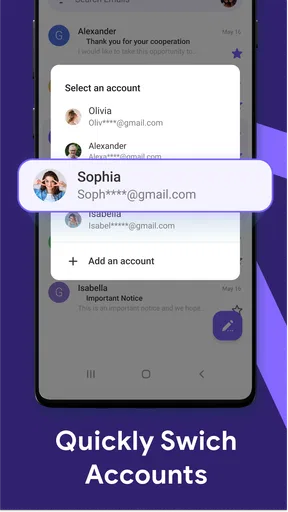
One of the main conveniences of Email: Fast, Manage All Mails is the ability to manage multiple accounts from a unified interface. You can typically switch between individual inboxes or view combined messages, depending on the available settings. Notifications may also be customized, but battery usage, notification delays, and synchronization can vary according to account provider, device settings, and connection quality.


